Almost every day there are updates available for your WordPress website. Some of them are critical and should be installed immediately, while others can wait. For optimal performance and security, updates should always be carried out regularly. How often depends on the plugins you use and the role your website plays within your organization.
Preparation
Before updating any plugin, creating a backup is essential. If something goes wrong during an update, you need to be able to restore a backup quickly.
For smaller updates, we use our own tool: Backup4WP. This WordPress backup tool runs alongside your website, which means it continues to work even if your dashboard becomes inaccessible after a failed update.
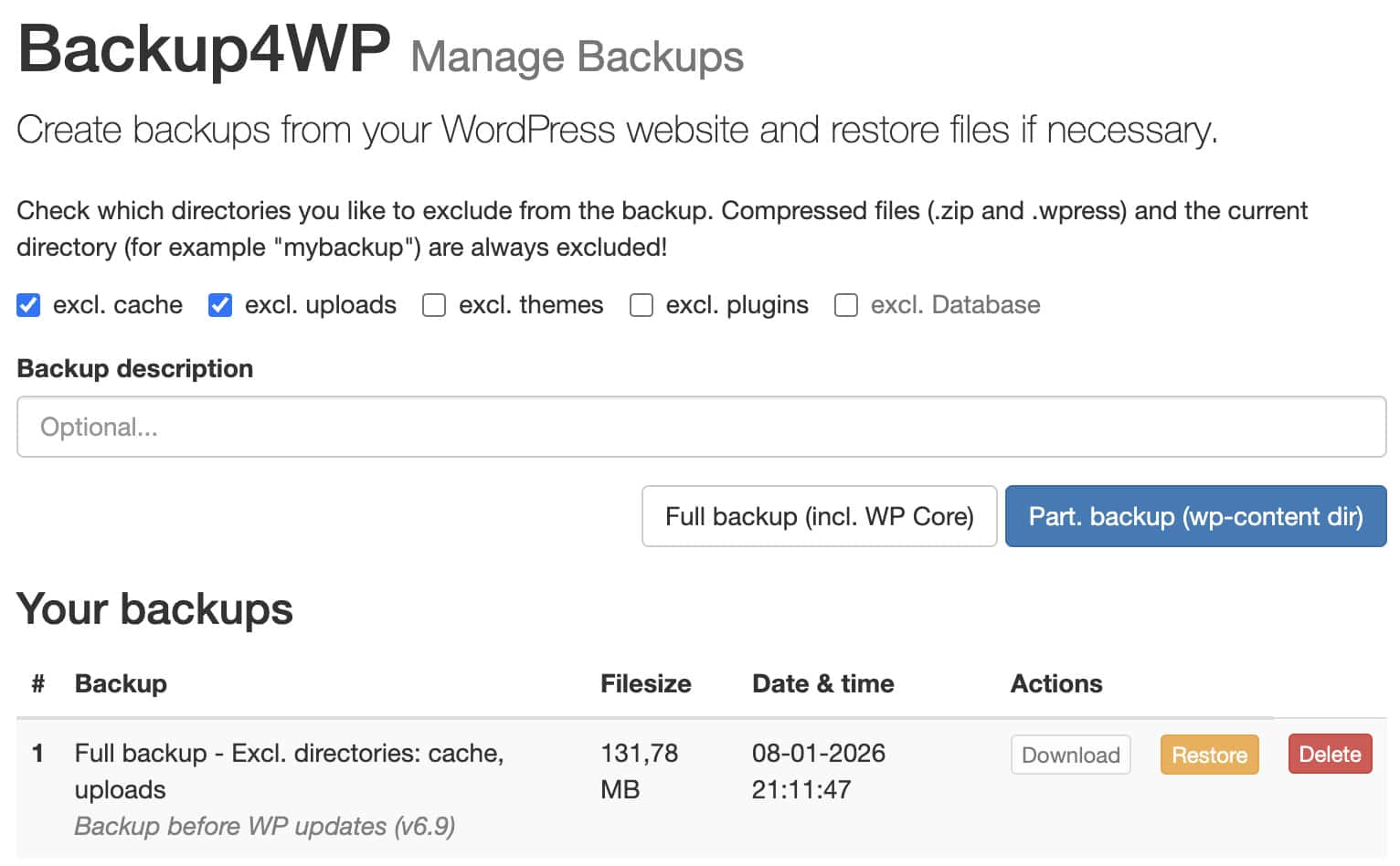
Backup created with Backup4WP
For major maintenance and/or high-traffic websites, it is best to test every update round on a copy of your website first.
Check your website before updating
Depending on the complexity of your website or whether it is managed by a team, it’s always important to stay familiar with how everything works and looks. Check the various pages and features.
Updating your contact form plugin? First, test the most important forms.
Is a theme update planned? Then check key elements such as navigation and other theme components.
Does your website receive regular visitors? During updates, it’s best to show a maintenance page to your visitors. This can be done using our Backup4WP plugin or other plugins from the WordPress repository.
Performing the updates
Are WordPress, the theme, and all plugins up to date?
Also check premium plugins such as Elementor Pro. These can usually only be updated (with a few minutes delay) after the free version has been updated.
Take a moment to read the change log of each plugin. This will tell you which features need extra testing afterward.
Make sure all license keys are still valid. Without a valid license, available updates are often not shown. If in doubt, you can always download the latest version from the plugin developer’s website and install it manually.
Re-check important functions
First, clear all types of cache:
- Page cache (e.g. WP Super Cache)
- Object cache (e.g. Redis)
- Optimized CSS files (Autoptimize, Elementor files and data, etc.)
Then test the website’s functionality using your browser’s incognito mode.
For example:
- Are form submissions still coming through?
- Are notification emails still being sent?
Check the list of form entries for excessive spam. Update or replace the spam filter functionality if necessary.
Security check
Run a security check. This helps uncover issues that you might not notice otherwise. You can use a malware detection plugin (such as NinjaScanner) or the Security Check feature in ManageWP.
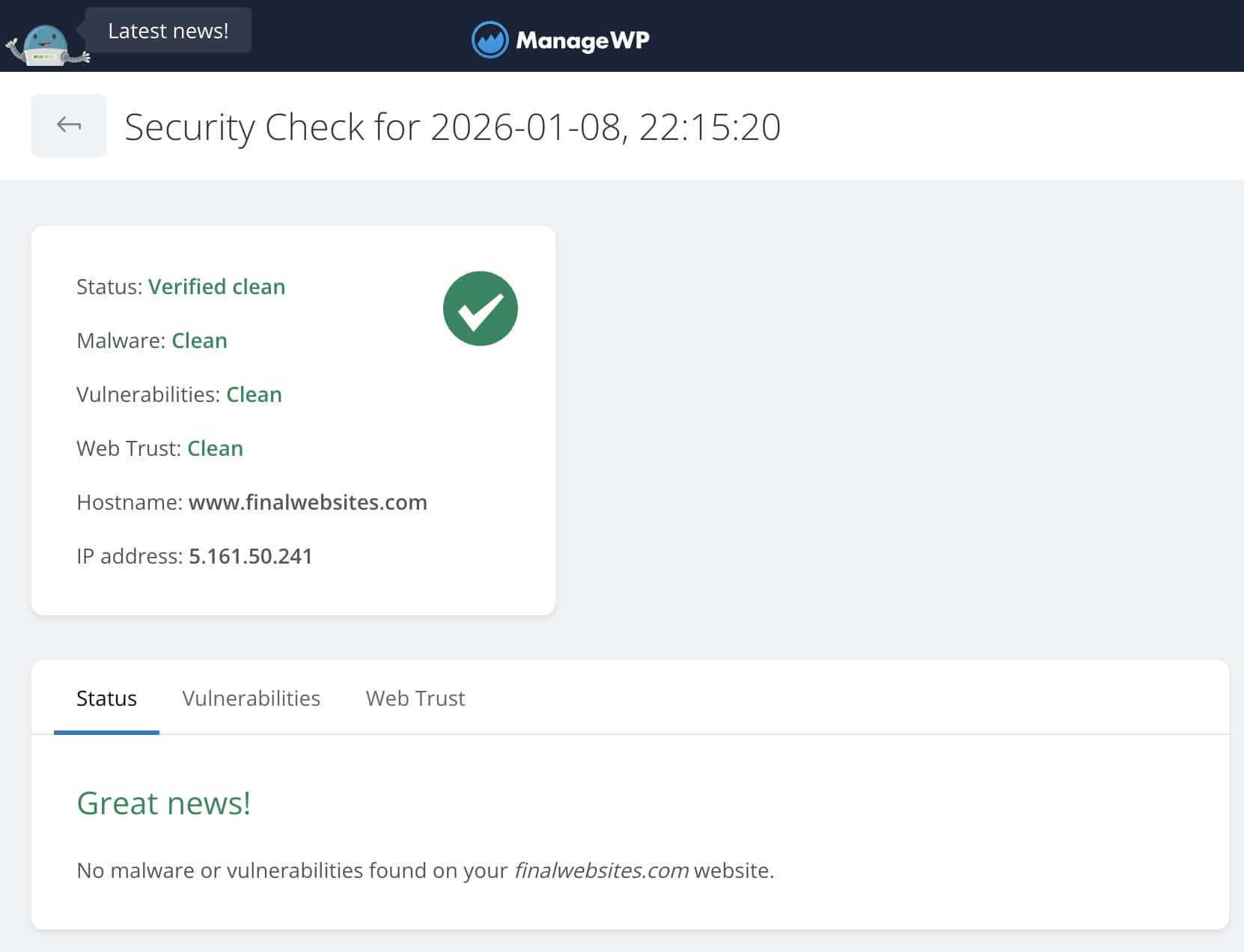
ManageWP – Security Check
Also review your website firewall settings. Are they still correct? Have new options been added that need configuring?
Solving technical issues
Check the 404 error log. We usually use the 404 report from the Redirection plugin for this. Are there errors for pages that were recently changed or removed? Create redirects so Google and your visitors don’t end up on a 404 page. You can also check 404 errors in Google Search Console.
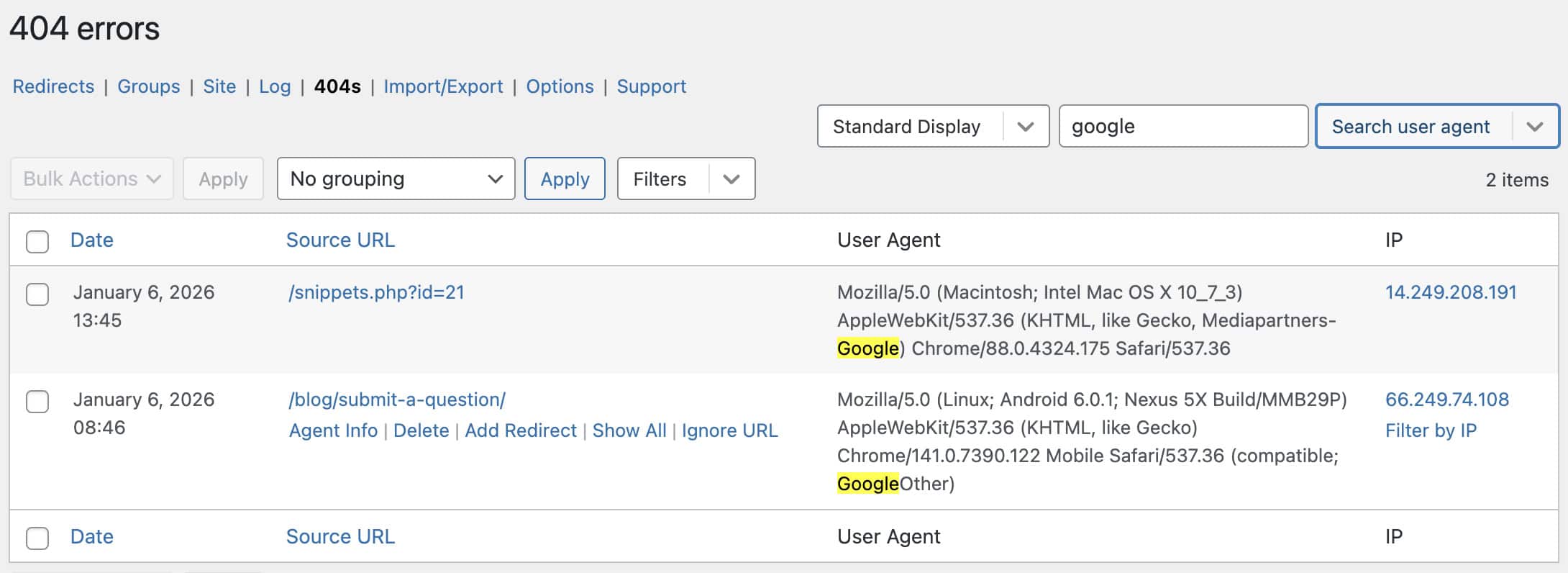
Redirection plugin – 404 error list
Review your website’s error log files as well. Do you see errors related to a recently updated plugin that were not there before? If so, consider rolling back that plugin and reporting the issue to the developer. With the Rollback plugin, you can easily revert a plugin to a previous version. This doesn’t work for premium plugins, but you can often find older versions on the developer’s website.
Check the website again
Now review the website as if you were a visitor. Do the pages still look the same? Test various elements such as mega menus, tabs, filters, the search function, and more.
Also check how the website performs on mobile. Review different pages and components here as well.
For WooCommerce webshops
Check the functionality of the catalog, including filters, pagination, and more.
How do variable products behave? Are the images, prices, and stock levels correct when you select a variation?
Always place a test order and check the entire checkout process:
- Add products to the cart
- Change cart contents
- Proceed to checkout
- Complete the order
- Are you redirected to the thank-you page?
- Do you receive the correct confirmation emails?
Did everything work as expected?
When things go wrong
In most cases, updates go smoothly. If something does go wrong and you can’t fix it right away, it’s best to test updates on a copy of the website first. Restore your backup so your live website is quickly back online.
For complex websites, it’s a good idea to keep a log of update steps and any special issues. This information can be extremely valuable during future updates, especially if something breaks.
Published in: Tutorials
